
Phone Storage Full After Deleting Photos? A Safe Android Cleanup Guide
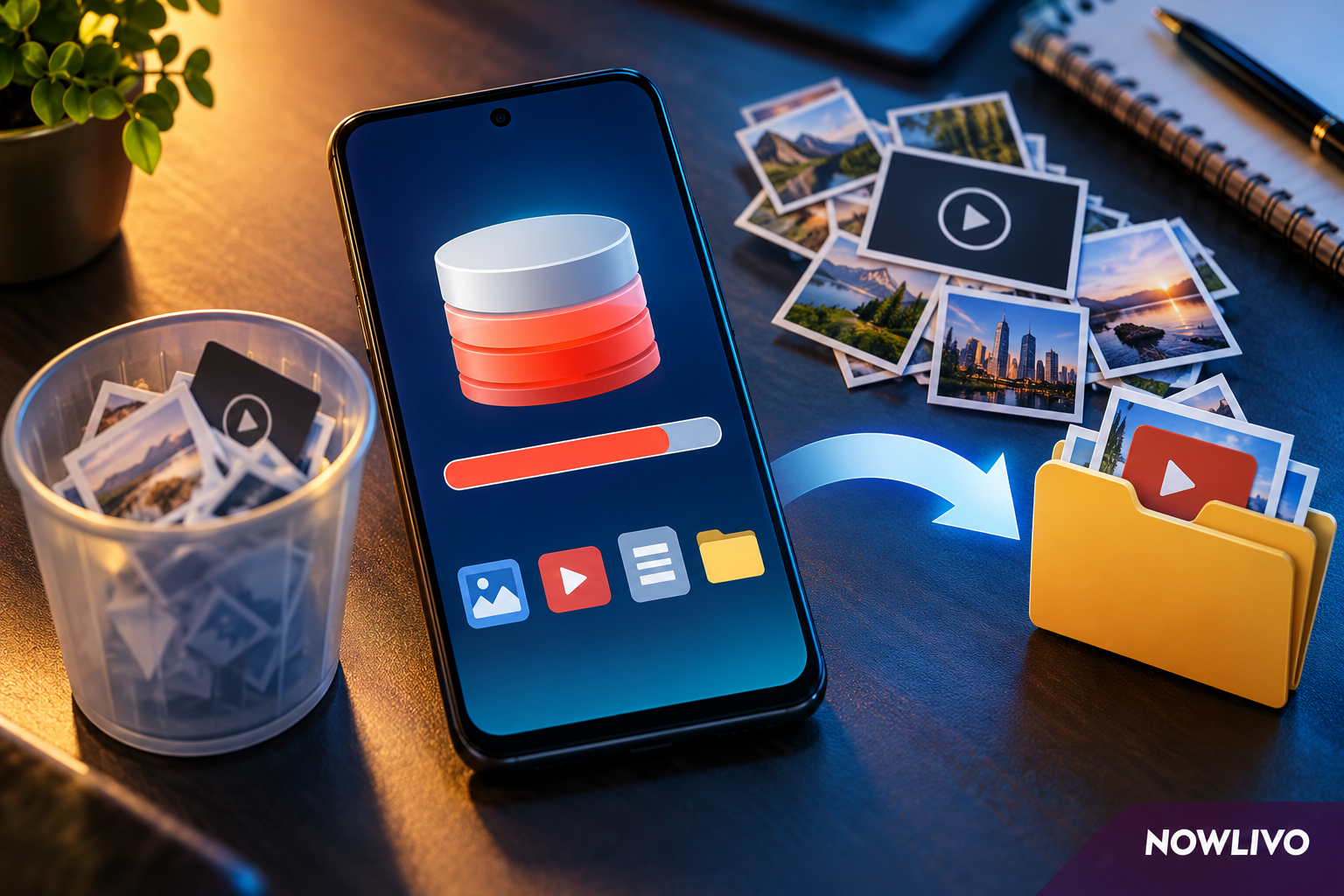
Your phone says storage is full, so you delete fifty photos. An hour later the warning returns. The problem is often not the number of visible photos at all: downloaded video, offline media, messaging attachments, app data, local trash and duplicate copies can occupy different parts of the same storage budget. The safest fix is not a mysterious cleaner app. It is a short inspection that identifies which category is actually growing before anything important is erased.
This guide focuses on Android phones, including devices that use Google Photos. Menus vary by Android version and manufacturer. The principle works across brands: inspect, confirm a backup, remove reversible clutter, then revisit the storage screen to check whether the change worked.
Start with the storage chart, not the gallery
Open Settings and find Storage. Android commonly groups usage into apps, images, video, audio, documents and system categories, although the labels differ. Write down the largest category and the available free space. Open the detail if your phone permits it. If apps occupy most of the drive, deleting a handful of photographs will barely move the gauge. If videos dominate, removing unnecessary offline episodes or a few very large recordings may matter more than hundreds of tiny screenshots.
Also distinguish local device storage from the cloud quota attached to your Google account. A phone can have free local space while a cloud backup service reports that its online allocation is full. Conversely, a cloud account can have ample room while your phone cannot install an update. Those are two different problems with different remedies; checking which notice you received prevents a great deal of ineffective cleanup.
Protect irreplaceable photos before tapping delete
Open Google Photos, select the correct Google account, and examine its backup status. According to Google's help guidance, the completed state is shown as “Backup complete.” Do not assume that a thumbnail visible in Google Photos proves the file has uploaded: the app can display pictures stored only on your device. Open a few recent images and confirm their status, then independently check the library at photos.google.com while signed into the intended account.
If you use an additional gallery, memory card, messaging app or shared family account, consider whether anything important exists exclusively there. Export essential files to a second trusted location before a major cleanup. A backup is only useful if you know which account holds it and can access it again. Avoid placing sensitive documents in an unfamiliar third-party cleaning service merely to recover storage.
Understand what 'Free up space' actually does
Google Photos offers a “Free up space on this device” command that removes eligible device copies already backed up. Those items can still be accessible in Google Photos while online, but they may no longer appear in a separate phone gallery or be available offline. This is not the same as selecting photos in the Google Photos library and pressing Delete. Google warns that ordinary deletion can remove backed-up items across synchronized devices.
Use the device-space option only after verifying backup. Review its explanation before confirming, especially if you are about to travel without reliable data access or you rely on local copies for an editing app. The exact amount reclaimed may differ from the size shown in your gallery, because some media was already online-only, compressed, cached or duplicated. Afterward, recheck Settings > Storage instead of trusting a completion animation alone.
Review offline downloads hidden outside Photos
Video, music, podcast, map, document and education apps can keep large offline files that never show in your camera gallery. Open the apps you actually use and inspect their Downloads or Offline sections. Remove watched episodes and outdated course materials from inside the app where possible. This is often clearer than deleting files from a system folder whose names do not identify the content. Do the same for long-forgotten installation packages in Downloads, after confirming that you no longer need them.
For messaging apps, examine their built-in storage tools and large attachments. A forwarded video may exist in a conversation, a downloads folder and a device gallery. Before deleting, decide whether the chat should retain its copy and whether you have permission to keep shared files elsewhere. Storage reclamation should not accidentally destroy a conversation's only surviving document. If an app supports download limits or automatic media-saving controls, adjust those settings to prevent the problem from returning.
Cache, app data and junk files are different
Some apps keep disposable temporary material to speed up loading; others store account data, drafts, downloaded files and offline content. Android may expose options such as Clear cache and Clear storage, but these are not interchangeable. Clearing an application's entire stored data may sign you out or erase local work. Check what a control says before touching it. For important apps, confirm that your drafts, notes and authentication recovery methods are backed up.
Google's Files by Google app can identify downloaded files and junk-file suggestions. Its own support guidance warns that clearing junk files can permanently delete those items rather than moving them into a recoverable trash folder. Review the suggestion and the listed files instead of treating every recommendation as safe. There is rarely a reason to install several aggressive 'one-tap booster' apps that request broad access to files and notifications.
Why deleted files sometimes still occupy space
A file moved to Trash may remain recoverable for a period and can continue occupying storage until permanently removed. Files by Google says items in its Trash are typically retained for 30 days; device galleries and other apps may maintain separate trash areas with their own rules. Check the trash inside the app where the original deletion happened. If the files are no longer needed and you have checked the backup, empty that specific trash deliberately.
Do not empty every trash folder indiscriminately. A recently deleted family photograph, voice note or job application document may be there precisely because someone expected to recover it. When a phone reports no available storage even after cleanup, restart it and give the storage calculation an opportunity to refresh before repeating destructive actions. If usage continues growing, identify the category that changes between checks rather than deleting randomly.
Don't mistake 'system' for removable clutter
The category called System or Other can include the operating system, app support data, logs, indexes and files the device needs to function. A large number here is not proof of malware or that a mysterious application stole your storage. The size and labels vary across devices. Installing or removing apps, operating-system updates and restarting the phone may alter the accounting display, but not every byte is user-cleanable.
Avoid guides that instruct you to delete unknown Android folders, disable security controls or reset the phone without a tested backup. Factory reset is a final troubleshooting step, not a routine housekeeping method. If system usage seems abnormal, consult the phone manufacturer's current support instructions and any available diagnostics. Document what you see before contacting support, including model, Android version and the category sizes.
A ten-minute cleanup in the right order
- Take a screenshot of Settings > Storage so you know your starting point.
- Check photo backup completion and the correct cloud account.
- Remove unneeded offline video, downloads and oversized messaging files.
- Review Files by Google suggestions individually.
- Use Google Photos' device-space feature only for verified backed-up media.
- Inspect trash folders after confirming that recovery is unnecessary.
- Recheck Storage and identify whether the largest category decreased.
This sequence gives you evidence. If your storage decreases for a day and then fills again, record which app's data grew. A recurring download, repeated media-saving setting or large cache may require changing behavior rather than repeating the same cleanup every week.
What to do before an OS update or a long journey
Phones may need working space to download and install updates. Before an update, focus on reversible deletions such as watched episodes, unused downloads and files that you have independently backed up. Do not erase authentication apps, boarding passes, offline maps or essential documents just before departure. Keep access to your cloud account and recovery credentials, especially if your phone number is also used to verify that account.
After cleanup, choose a small maintenance habit: review Downloads once a month, disable unnecessary automatic video saving, and check photo backup status before major travel. For a wider discussion of devices and what happens after repair, NOWLIVO has also covered questions buyers should ask about repaired devices.
Frequently confused questions
Does deleting a photo in Google Photos leave it safely in the cloud?
Not necessarily. Google's published guidance warns that deleting from Google Photos can delete the synchronized photo from your account and devices. 'Free up space on this device' is a separate operation for eligible backed-up local copies. Read the exact action before confirming.
Will clearing cache remove my messages?
A normal cache-clear operation is different from clearing application storage or data, but labels vary. Never assume an unfamiliar control is harmless: inspect the description and check your app's backup or synchronization status first.
Why is the warning back after cleanup?
An app may have downloaded new media, a camera may have recorded another large video, or trash may still retain deleted items. Compare category sizes over time to find the cause. The goal is to stop uncontrolled accumulation without risking useful files.
Sources and review note
Practical product steps checked on 25 October 2026 against Google's Android storage guide, Google Photos backup instructions, Google Photos' device-space guidance, Google Photos deletion warning, and Files by Google Trash guidance. Device menus and retention behavior should be rechecked when major app versions change.