
USB-C Cables Explained: Why the Same Connector Can Charge and Transfer Differently
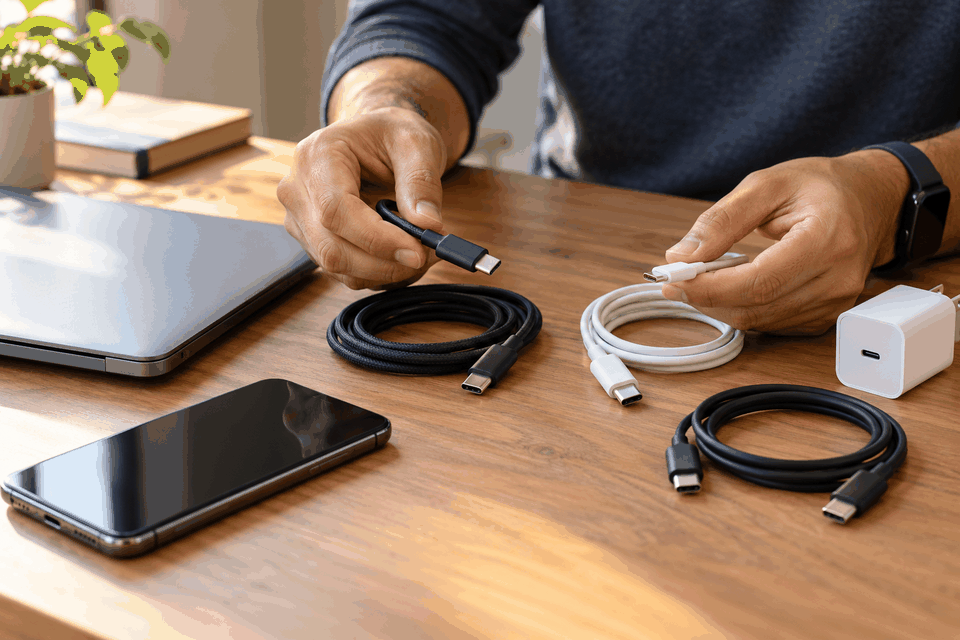
A practical global guide to choosing a USB-C cable for charging, file transfers and displays without relying on connector shape alone.
The connector is a shape, not a performance guarantee
Two cables can end in the same small oval USB-C connector yet behave very differently. One may charge a phone perfectly but move a large video file slowly. Another may transfer data quickly but be rated for less power than a demanding laptop requires. A third may be unsuitable for a particular monitor setup. The connector alone does not tell you which functions the entire connection supports.
The most useful shopping question is not “Is this USB-C?” but “What does this cable need to do between these two devices?” Charging, data transfer and video output are separate capabilities. Each depends on the cable, the ports on both devices, and sometimes the charger or dock. A premium-looking cable cannot add features to a port that does not support them.
Start with the charging power you actually need
For charging, compare the power requirements of the device and the output of the charger with the cable’s rating. USB Power Delivery can negotiate an appropriate power level when the relevant equipment supports it. A cable labelled for a higher wattage does not force that power into a small device. The device and charger determine the negotiated charging behavior within their supported limits.
The USB Implementers Forum describes certified USB-C to USB-C cable power markings such as 60W and 240W. Those are cable capability labels, not promises that any phone will charge at that rate. Some existing products and older labelling conventions differ. For a high-power laptop, verify the manufacturer’s charger and cable recommendations and prefer a clearly rated cable from a trustworthy supplier.
Data speed is a different specification
A cable can carry enough power for a laptop and still be limited to relatively slow USB 2.0 data transfer. That may be fine for a charger on a bedside table but frustrating when moving hundreds of gigabytes between an external SSD and a computer. Check the supported data rate on the cable packaging or specification: it may be expressed in megabits or gigabits per second. USB-IF’s certification programme uses data-rate markings for applicable cables.
Even a fast cable cannot make a slow external drive faster. Actual transfer performance depends on the drive, enclosure, file sizes, operating system, port capability and other devices in the chain. Advertised link speeds are not the same as sustained real-world file-copy rates. For large video libraries or backups, test with a known fast port and storage device before assuming the cable is defective.
Why a monitor sometimes stays black
USB-C can also carry display signals in supported configurations, but not every USB-C port outputs video. Some laptops use a compatible alternate mode or a Thunderbolt or USB4 implementation for displays; a phone may have a USB-C connector without supporting an external monitor. The cable and dock must also support the relevant signal path and resolution or refresh requirements.
When a monitor does not work, inspect the computer’s port specification first, then the dock or adapter, and finally the cable. Try the direct connection recommended by the manufacturer. Avoid buying an expensive “8K cable” merely because the box uses that phrase. Ask whether the exact host port, cable and monitor combination supports the desired mode.
Read packaging without getting lost in version numbers
Look for three pieces of information: supported power rating, supported data rate and any explicitly stated video or docking capability. USB-IF explains that compliant USB-C to USB-C cables in its certification programme should display the relevant power marking, while higher-data-rate cable categories should carry an appropriate speed indication. Certification is useful evidence, but it does not replace checking the specific device requirements.
Be cautious with product descriptions that say only “fast charge”, “premium” or “USB-C compatible”. Those phrases may not tell you whether the cable supports the charging power, data rate or display connection you need. Compare the actual published specification and check whether the seller distinguishes a charging-only use case from a full-featured cable.
Five everyday examples
For a phone used mostly with a wall charger, a well-made, appropriately rated cable may be sufficient even if data speed is modest. For a laptop that draws more power, check the charging adapter and cable power ratings together. For a portable SSD, prioritize data speed and a short, reliable cable. For a monitor, confirm video support end to end. For a multiport dock, check the dock’s own specifications and the capabilities of the upstream cable.
Consider a laptop with a fast external SSD that copies slowly. If the drive and laptop support a high-speed connection but the cable is intended for USB 2.0, replacing the cable may help. Now consider a laptop that charges slowly from a small phone charger. A higher-rated cable alone will not make the underpowered charger deliver the laptop’s recommended power. These are different bottlenecks with different fixes.
Troubleshooting without unnecessary purchases
If charging is intermittent, inspect both connectors for damage and debris, and stop using any cable that gets unusually hot, has exposed conductors or fits loosely. Try a known-good charger and cable that meet the device manufacturer’s guidance. If data transfer is slow, test the same devices with another confirmed high-speed cable and port. If video fails, verify the port’s display capability before troubleshooting the cable.
Keep one clearly identified cable for high-speed data or docking if those functions matter to you. Label the storage case or keep the original specification card, not the cable itself if you prefer a clean setup. A small amount of organization prevents the recurring mystery of why the “same” cable works in one situation but not another.
Buy for a use case, not a marketing phrase
Before purchasing, write a one-line requirement: “charge this laptop”, “copy files from this SSD”, or “connect this monitor at its supported resolution”. Verify the relevant device ports and charger, then compare cable specifications from reputable manufacturers and USB-IF certification information. Choose a sensible length and durable construction rather than assuming the most expensive option is always best.
The underlying lesson will remain useful even as connector standards evolve: power, data and video are separate questions. Recheck official USB-IF information and device specifications when new speed or power classes appear.
Frequently asked questions
Does a 240W USB-C cable make a phone charge faster?
Not by itself. The charger and phone negotiate supported power; a cable with a higher rating simply provides the capacity to carry it within the relevant system.
Can a charging cable transfer files?
Many can, but their data rates vary. A cable suitable for charging may support only slow data transfer, so check the published specification.
Does every USB-C port support an external monitor?
No. Video output depends on the host device and port capabilities as well as the adapter, dock and cable.
Is a certified cable always necessary?
Certification offers a useful signal of tested capabilities, but you should still match the published power, speed and feature requirements to your devices.
Official sources and update note
This guide was reviewed on 30 October 2026. Verify current forms, product terms, menus and procedures directly with the relevant authority or service before acting.