
The 3-2-1 Backup Rule: A Practical Home Computer Recovery Plan
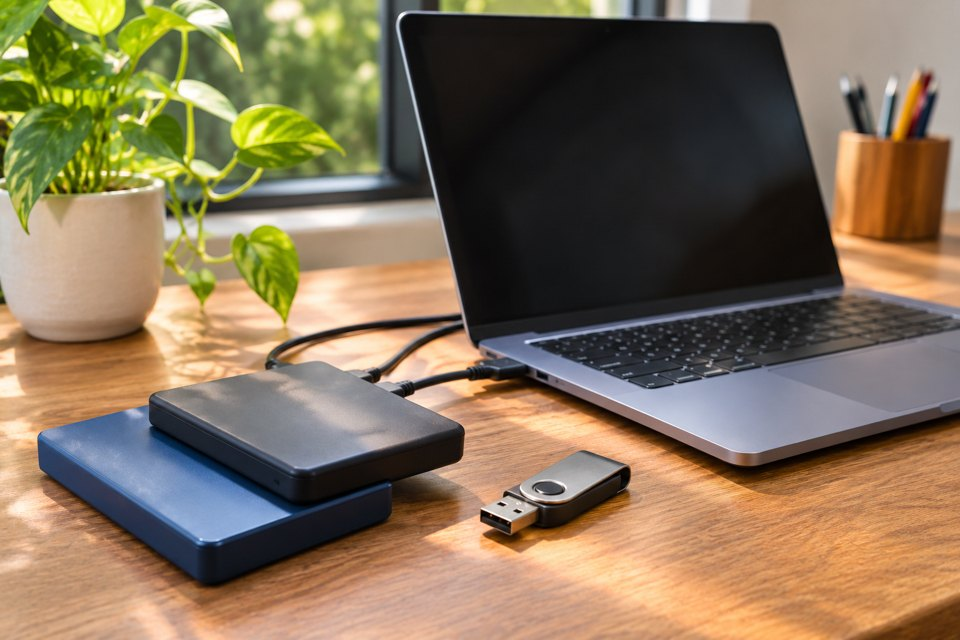
An international beginner guide to setting up three copies of important data and proving they can be restored.
A backup is a recovery promise
People often discover the difference between storage and backup only after losing a folder. A second drive that has never been checked may contain an outdated copy. A cloud sync service may quickly reproduce an accidental deletion. A photo archive stored on the same laptop as the originals can disappear with the device. A useful backup plan must answer two questions: where are independent copies kept, and can you actually restore the files you care about? The 3-2-1 rule is a memorable starting framework rather than a guarantee against every failure.
What the numbers mean
The classic 3-2-1 rule calls for three copies of important data, on two different media types, with one copy offsite. In practical home use, the original laptop data counts as one copy; a local external-drive backup is another; and a separate offsite backup provides the third. The United States cybersecurity guidance describing the rule emphasises protection from loss and corruption. You can adapt the arrangement to modern storage options, but the underlying idea is independence. Two copies on the same failing device do not give meaningful protection against device loss.
Choose what is irreplaceable
Start with documents, photographs, personal projects, tax records and other files that would be difficult or impossible to recreate. Make an inventory of where they live: laptop folders, phone storage, email attachments, cloud drives and removable cards. Do not assume everything is included in a default backup setting. A photo app may store originals in the cloud while a laptop contains only thumbnails. A work account may block exports or belong to an employer. Confirm which data you are authorised to back up and how each service handles original quality and deletion.
Set up a local backup
Choose a reliable external drive with enough space for current data and future growth. Use the operating system’s built-in backup feature or a reputable backup application, and confirm exactly which folders are included. Enable automatic schedules if possible. For a laptop that travels frequently, connect the drive at a regular time rather than leaving it attached indefinitely. An always-connected backup may be exposed to malware or accidental deletion along with the computer. Protect the drive from physical damage, and use encryption where sensitive personal files are involved.
Create an independent offsite copy
An offsite copy protects against events affecting the same room or building, such as theft, fire or flooding. It could be a securely stored drive at another trusted location or a suitable cloud backup service. The important property is independence, not merely a different folder. Review account recovery options, encryption, storage limits and how deleted files are retained. For highly sensitive records, consider whether you control encryption keys and whether recovery remains possible if you lose your primary device. Do not publish backup folders through public sharing links.
Sync is not always backup
File synchronisation keeps folders aligned across devices, which is convenient for everyday work. But if you accidentally delete a folder or overwrite a file, the change may synchronise everywhere. Some services offer version history or recovery windows, but their details differ. A separate backup should let you retrieve an earlier good version even after the current working copy changes. Before relying on a cloud service, find its documented restore process and understand whether the plan provides backup snapshots, simple sync or both.
Run a restore test
A backup is not proven until you restore something from it. Pick a non-sensitive sample folder with several file types and restore it to a separate location. Open the restored documents and photos; compare names and contents. For important projects, check that related folders and dependencies are present. Record when the test succeeded and which backup source you used. Do not overwrite the original during a test. If recovery requires a password, key or account, verify you can access it without relying on the computer you might lose.
Make the routine sustainable
An elaborate system that is never run is less useful than a simple one maintained consistently. Decide how often your data changes and how much recent work you could afford to lose. Back up active projects more frequently than an archive that rarely changes. Review backup health after operating-system updates, storage moves and new device purchases. Keep a short recovery note in a secure place explaining where copies live and how to restore them. Update that note whenever you change tools or account credentials.
Frequently asked questions
Does a USB stick count as a backup? It can hold a copy, but reliability and capacity may make it unsuitable as the only backup. Is one cloud drive enough? Not necessarily; consider independent copies and version recovery. Should an external drive stay connected? Regularly disconnecting a backup can reduce exposure to some threats, provided backups still happen. How often should I test? Periodically and after major changes. Does 3-2-1 eliminate all risk? No; test restores and protect accounts and encryption keys.
Before you finish: a practical final check
Think through the day you actually need to recover. If your laptop disappears during travel, could you sign in to the backup service without a saved password on that laptop? If the external drive fails, do you know where the offsite copy is? If a ransomware incident affects a synced folder, is there an earlier version isolated from the same credentials? Write down these scenarios and test one at a time. A backup plan should also include access to recovery codes and encryption keys, stored securely apart from the device being protected.