Windows Storage Sense Explained: Free Up Space Without Losing Important Files
A global Windows guide to safe disk cleanup, Downloads settings, Recycle Bin and cloud-only files.
What Storage Sense actually does
Storage Sense is a Windows feature for reclaiming disk space by removing certain temporary files and managing eligible content according to your settings. It is not a backup program, malware scanner or guarantee that every large file can be safely removed. Microsoft explains that Storage Sense primarily works on the system drive. Start by checking what is consuming storage and deciding what you can afford to lose. If a folder contains work, family photos or school records, make a verified backup before any aggressive cleanup.
Find the controls
On supported Windows versions, open Settings, choose System and then Storage. You can inspect the broad storage categories and open Storage Sense or Cleanup recommendations. Labels may vary slightly by Windows release. Do not use a random “PC cleaner” download just because it promises more space. Built-in tools give you a clearer view of what is being removed. Before enabling an automatic schedule, read the settings rather than accepting a configuration you do not understand.
Understand temporary files and Recycle Bin
Temporary files may be created by apps and the operating system during normal work. Some are safe to clear when no longer needed, but it is still worth reviewing the proposed cleanup list. Recycle Bin content is different: those are files you previously deleted, and automatic emptying can remove a last opportunity to restore them. If you are uncertain whether a document was deleted accidentally, inspect the bin before running cleanup. The amount recovered can vary and should not be promised in advance.
Downloads is a special case
The Downloads folder often contains installers, invoices, photos, course material and attachments that a person has not moved elsewhere. Microsoft states that Downloads content is not managed by the default Storage Sense configuration unless the user chooses relevant settings. That is a useful safety boundary, but do not assume your own computer still has the default configuration. Open the Storage Sense options and inspect any Downloads cleanup rule. Sort Downloads by size or date and move important items to a properly organised location before deleting anything.
Cloud placeholders are not deleted cloud files
Cloud-sync services may offer files that appear in File Explorer but are stored primarily online. Making a file online-only can reclaim local disk space without deleting the cloud copy, provided the service is working as intended. This is not equivalent to maintaining an independent backup. You may need a connection to open that file later, and deleting a synced file can propagate the deletion. Check the sync status and any “always keep on this device” choice before making large changes. Avoid making essential travel documents online-only right before an offline trip.
A careful cleanup sequence
First, check remaining space in File Explorer and Windows Storage. Second, back up irreplaceable files and verify you can open the backup. Third, review Cleanup recommendations and temporary-file categories. Fourth, inspect Recycle Bin and Downloads separately. Fifth, remove unused apps only when you know what they do and have the necessary licences or installers to restore them. Finally, restart if appropriate and recheck available storage. If little space was recovered, look for unusually large personal files rather than repeatedly deleting random system folders.
Example: preparing for a Windows update
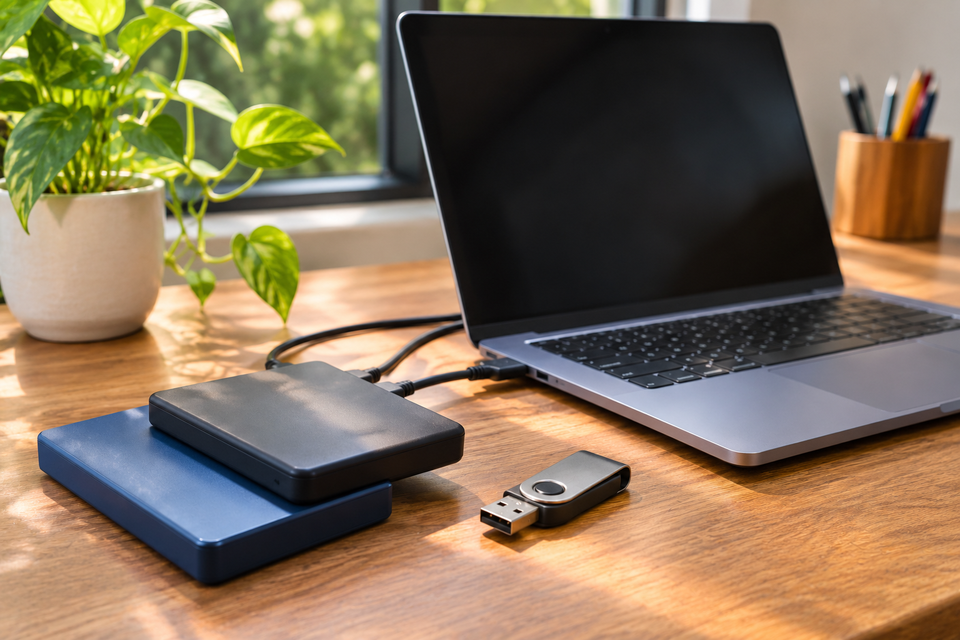
Imagine a laptop with little free space before a major update. Instead of deleting documents blindly, its owner checks Storage settings, removes safe temporary content, moves an old video archive to verified external storage and reviews cloud-file availability. They keep a local copy of essential working files. If Windows still reports insufficient space, they follow Microsoft’s official update-space guidance. This approach is slower than a one-click cleaner but reduces the risk of discovering that an important file vanished.
Frequently asked questions
Does Storage Sense clean every drive? Microsoft describes it as working on the system drive; inspect other drives separately. Does it delete Downloads automatically? Not under the default settings described by Microsoft, but your configuration may differ. Is cloud-only the same as backed up? No. Can I recover a file after Recycle Bin is emptied? Recovery is not guaranteed. Should I delete unknown Windows folders manually? No. What is the safest first step? Check storage categories and protect irreplaceable files.
Make the process repeatable
If you share a Windows computer, remember that storage settings and personal folders may affect more than one person. Review which account you are signed into and whether family members have files on the same system drive. Some applications keep large caches or project folders that are not obvious in a simple category view. Rather than deleting an unfamiliar directory, identify the application and use its own supported cleanup procedure. Keep installation media or account credentials for software you might need to reinstall. After cleanup, open several important files to confirm they remain accessible, especially those managed by cloud sync. Consider repeating a gentle review monthly instead of waiting for a nearly full disk to disrupt an important task.
Final checks before you finish
Do not confuse free disk space with computer speed in every situation. A nearly full drive can interfere with updates, but performance problems may also involve memory, software or hardware. Measure available space after each action and stop once you have enough room for the task at hand.
Further reading and verification
Verify time-sensitive instructions with the relevant official service or provider before acting. This guide is educational and does not replace individual advice.