
Why HDR Video Looks Washed Out After Uploading—and What to Check
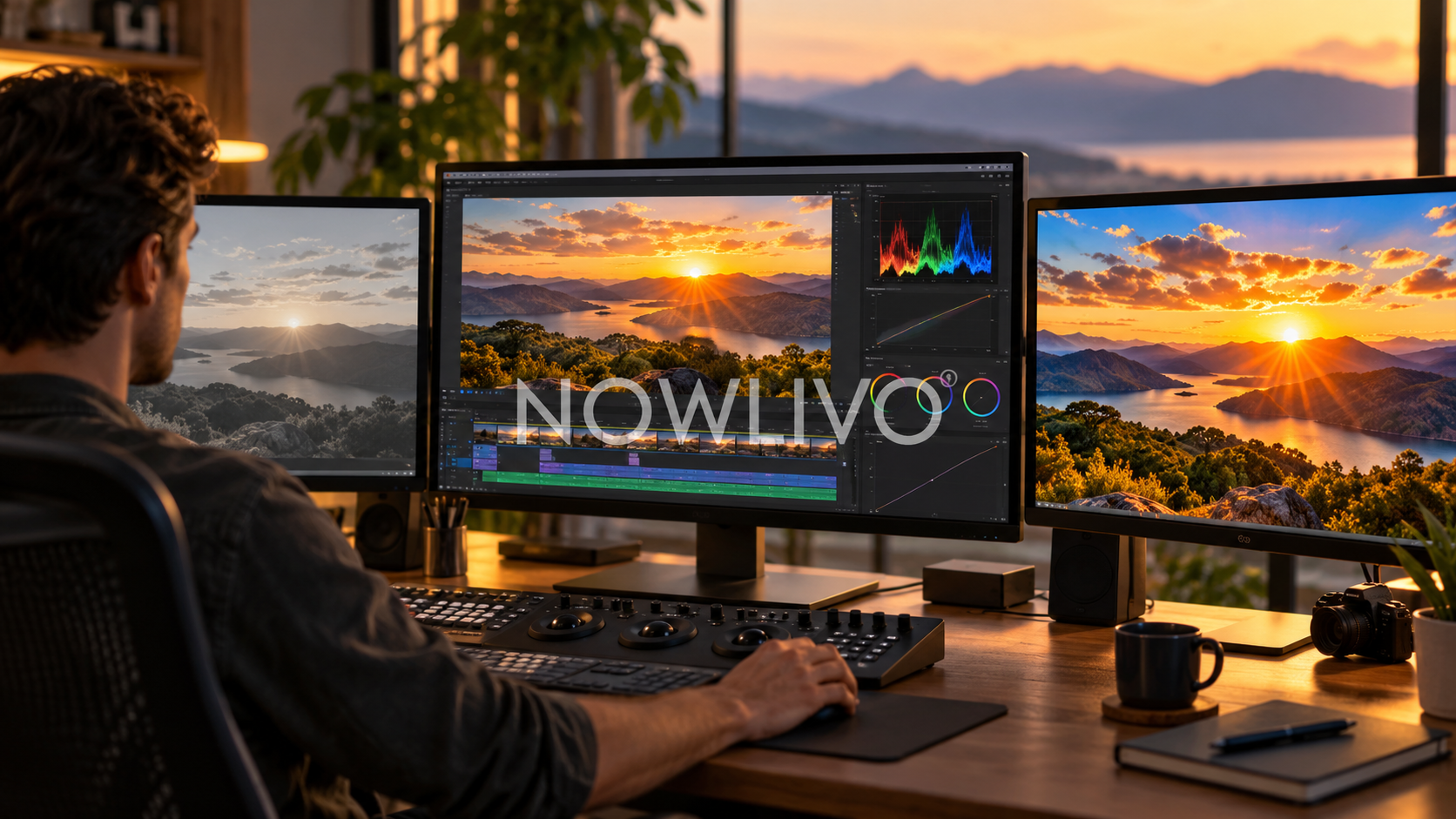
HDR video can look washed out when its colour and brightness information is interpreted incorrectly somewhere between recording, editing, export and playback. Do not start by adding contrast to the entire project. First identify whether the exported file is correct and whether the upload is being viewed through an HDR or SDR playback path.
Find the first stage where the picture changes
Compare the original clip, the editing preview, the exported file and the uploaded version. Use the same recognisable shot, such as a face against a bright window.
If the source looks right and the timeline looks wrong, investigate the editor’s colour handling. If the local export looks right but online playback differs, investigate export metadata, processing and the viewing device.
HDR needs the correct export information
For YouTube HDR uploads, the file must carry suitable HDR metadata and supported colour information. Its guidance specifies Rec. 2020 with PQ or HLG transfer characteristics. An HDR title or description does not supply that data.
Do not label ordinary SDR footage as HDR merely by changing metadata. That can make the platform interpret the image incorrectly rather than recover missing highlight detail.
Mixed footage needs deliberate treatment
A project containing SDR screen recordings and HDR camera footage needs a consistent colour workflow. Otherwise, one source may look correct while another looks pale or excessively bright.
Set the intended delivery format first. Then handle each source within that workflow instead of applying one corrective effect blindly to every clip.
Check the playback route
A properly processed YouTube HDR upload can also have an SDR conversion for viewers using other devices. Compatible playback should identify HDR in the quality options.
Check the player and display rather than assuming the highest resolution means HDR. Resolution describes pixel dimensions; HDR describes a different part of the image presentation.
Export a short test before the full video
Use a test segment containing faces, shadows and highlights. Watch it locally and after upload on the intended playback setup. Also inspect the SDR result if that is how much of your audience will watch.
A small test helps separate a workflow problem from a creative grading choice. Once you know where the change occurs, correct that stage and repeat the test before committing to a long export.
Quick check
- Compare source, timeline, export and upload.
- Check the intended colour workflow.
- Test both HDR and SDR playback where relevant.
Read next: planning accessible video captions.