How to Check if an Image Is AI-Generated With Google’s Public SynthID Detector
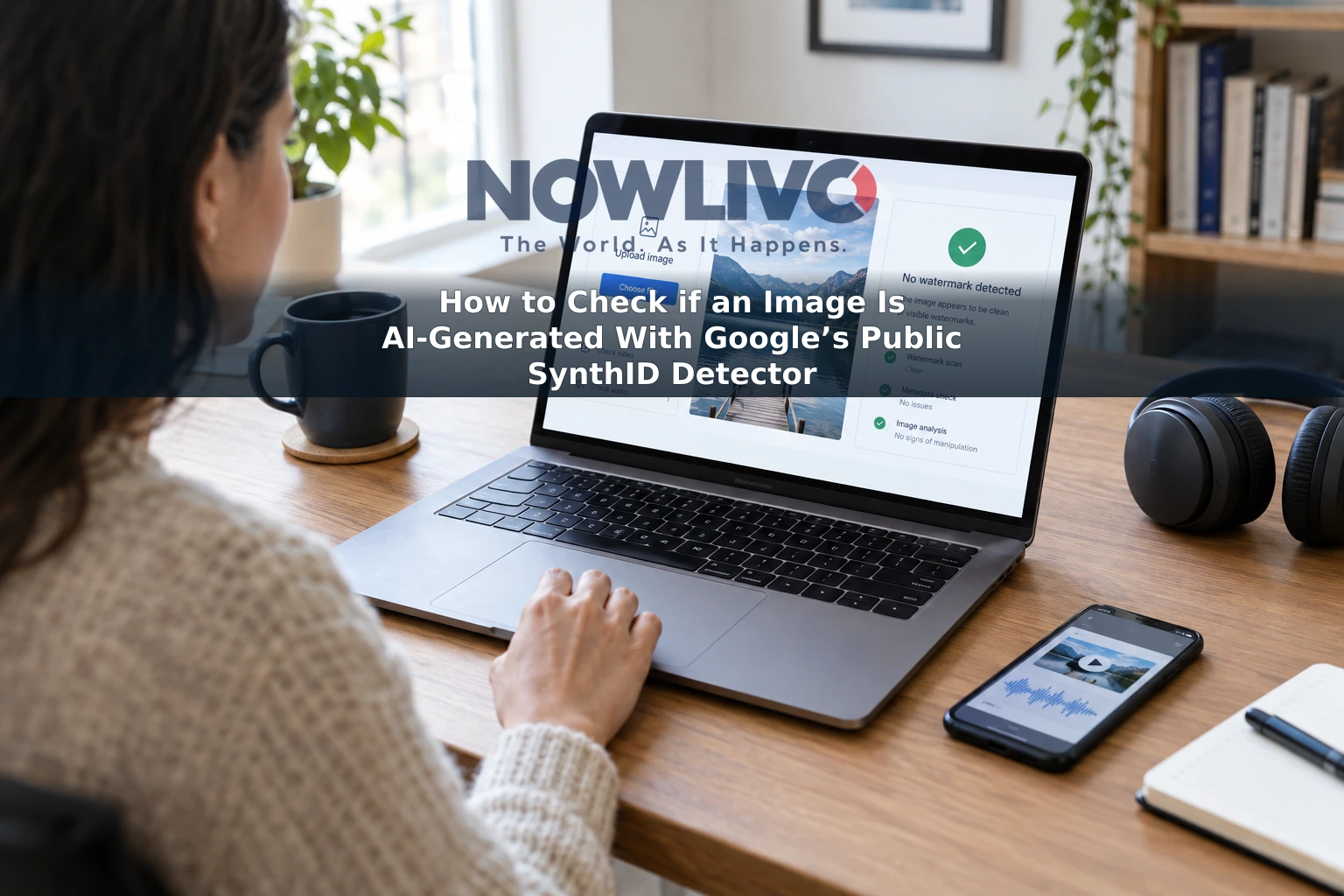
To check if an image is AI-generated, open Google’s SynthID Detector website, upload the image and review whether it finds a SynthID watermark. The same tool accepts video and audio files. A detected watermark can identify content made or edited with a participating AI tool; a result showing no watermark cannot establish that the file is authentic or free of AI.
Google opened the detector to everyone globally in English on October 7, 2026. An earlier version, announced in May 2025, was offered to selected journalists, researchers and media professionals. The public release gives people a direct way to check a file rather than relying on how convincing it looks or sounds.
How to use Google’s SynthID checker
- Find the official detector. Search for Google SynthID Detector and open Google’s verification website. Avoid uploading a file to an unrelated site with a similar name.
- Upload the media file. Select an image, video or audio recording from your device. If possible, use the original file rather than a screenshot, forwarded copy or heavily compressed download.
- Read the result carefully. The detector checks for an invisible SynthID watermark. When it finds one, it may indicate where the signal appears—for example, in an area of an image or a segment of audio. A marked section does not necessarily mean every part of the file was AI-generated.
The reported supported image formats are JPG, JPEG, PNG, BMP, WEBP, AVIF, HEIC, HEIF, TIFF, TIF and GIF. For video, they are MP4, MOV and WEBM; for audio, WAV, MP3, OGG, FLAC, AAC and M4A. If an upload fails, check the file’s format and the instructions displayed by the detector. Do not assume the separate Gemini app’s file-size, duration or daily-use limits also apply to this website.
Can SynthID detect AI video or verify AI-generated audio?
Yes—when the video or audio contains a SynthID watermark the checker can recognize. Google says the public detector covers watermarked media from its own AI tools and participating partners, including OpenAI, NVIDIA and Kakao. Google says Apple support is coming; it should not be treated as available yet. Coverage depends on the particular tool and file, not merely on the company name.
For a suspicious video, upload a supported video file and inspect any portions flagged in the result. For a voice recording, song or other audio clip, upload the audio file and check whether the detector identifies a marked segment. Google’s earlier description of the detector says it can point to portions of a file where a watermark is most likely present.
What does a negative result mean?
No watermark detected does not mean “not AI-generated.” SynthID is a watermark added by tools that use it, not a test for every possible sign of synthetic media. An AI file made without a supported watermark may produce no match. Google also cautions that alterations can sometimes make a watermark undetectable, even though it is designed to survive common changes such as compression and resizing. Very small edits or simple content can also make verification inconclusive.
Google has separately enabled image, video and audio checks in the Gemini app, but the two routes should not be confused: Google’s Gemini help information says its SynthID check currently recognizes content created by Google AI tools, while the newly public detector is described as covering participating partners too. The public announcement describes uploads of images, video and audio—not a general-purpose text checker.
If the result matters, treat the watermark check as one piece of evidence. Look for the original publication, compare other copies and check the surrounding claim independently. Before uploading a private recording or someone else’s personal image, consider whether you have permission to share that file with a verification service.