
Google Gemini for Windows: What the New Desktop App Can Do
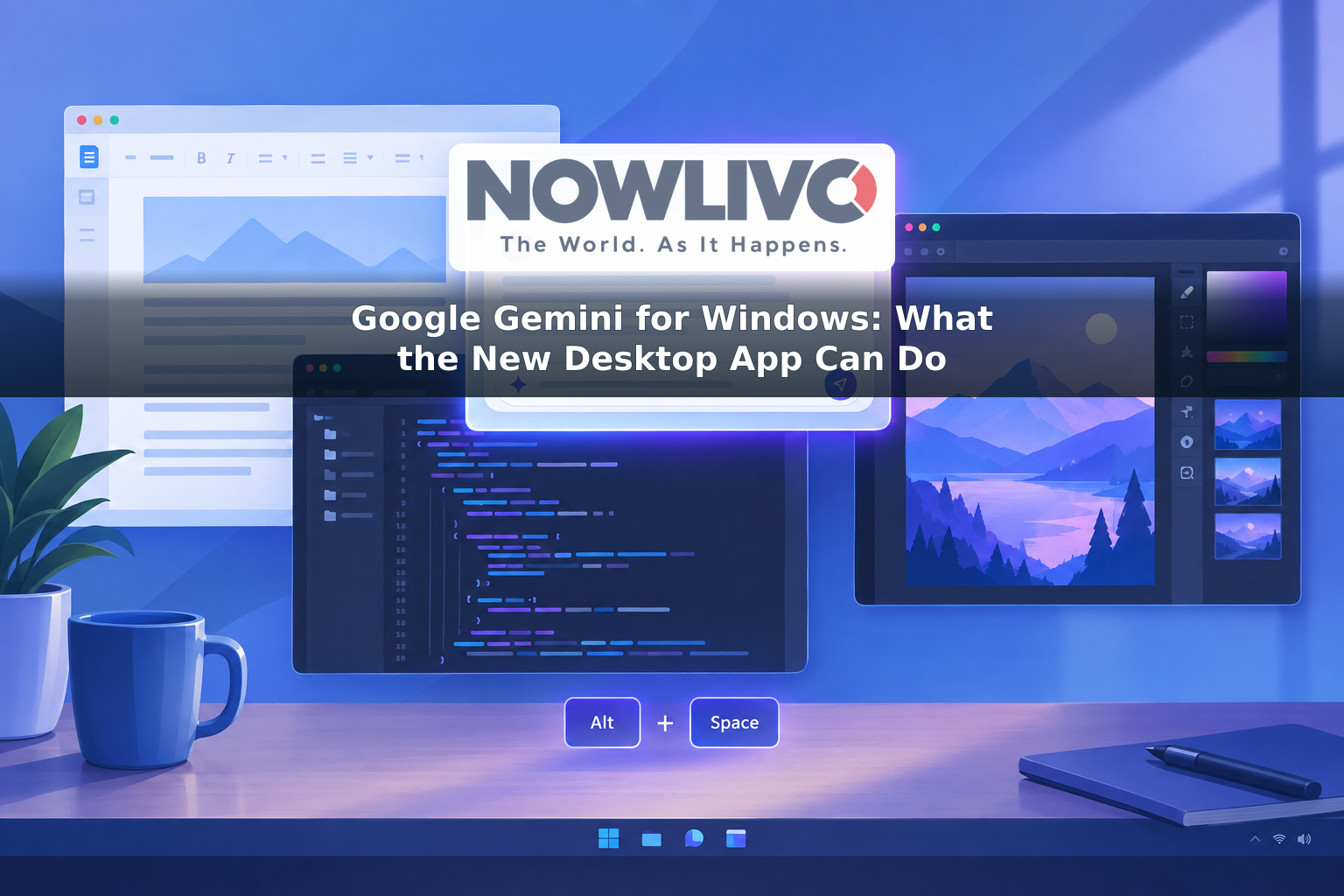
Google Gemini is now available as a dedicated app for Windows 10 and 11. Its main advantage is quick access: press Alt + Space to open Gemini over the work you are doing, without first finding a browser tab. From there, you can ask questions, draft text, summarize material, get coding help and create images. The app also has a larger workspace for tasks that need more than a quick reply.
Google released the Windows app on September 10, 2026. It is available globally wherever the Gemini app is supported, though individual features can vary by account, location and subscription.
What can you do with it?
The shortcut is useful for small interruptions to a task. You could ask Gemini for an outline while preparing a document, request alternative wording for an email or brainstorm titles for a presentation. You can also use it to explain code, suggest a fix or summarize an article or document. As with Gemini elsewhere, an answer that matters should be checked before you use it.
For work that takes several prompts, open the full app. Google says its desktop workspace supports more involved research and can use connected Google apps, including Gmail and Drive, to find information or help draft a summary. For example, you could ask for a project recap based on material you have access to in those apps. Which connections are available depends on your account and settings; installing the Windows app does not, by itself, mean every Google service is connected.
The app can also analyze an image you upload and answer questions about it. If you need a new visual, Gemini’s Nano Banana image-generation tool is available from the desktop workspace. Google has also highlighted Gemini Spark for multi-step tasks and Gemini Omni for video creation, but those advanced tools require a Google AI subscription, are limited to adults and may not be available to every user.
How do you install Gemini on Windows?
Download the installer from Google’s official Gemini desktop page, run the GeminiSetup.exe file and sign in with a Google Account. You can then open Gemini from the Start menu or use Alt + Space while the app is running. Google says the shortcut can be changed in the app’s settings; the app can also be opened from the taskbar or system tray.
Your PC needs Windows 10 or later, at least 8 GB of RAM, 200 MB of free space for installation and a stable internet connection. Both personal Google Accounts and eligible work or school accounts can use the app. For a managed account, an administrator must have enabled access to Gemini. Google says chats sync across desktop, web and mobile when you use the same account.
What is different from using Gemini in a browser?
The most noticeable difference is access, not a separate set of AI answers: the Windows app gives Gemini its own place on your desktop and a shortcut you can call up alongside other programs. That can save a trip to the browser when you want a quick response. The full workspace is there when you want to continue a conversation, work with connected apps or create something more substantial.
There is an important limit to the desktop description. Opening Gemini over another window is not the same as giving it the ability to see or operate everything on your PC. Google describes screen-context sharing, voice dictation across open apps and local-folder connections as capabilities of its Mac app, while saying more native capabilities will come to Windows over time. Windows users should not assume those Mac-specific tools are present just because the two apps share the Gemini name.
If your aim is to ask Gemini for help while you write, read or code on a Windows PC, the new app provides a direct way to do it. If you need it to understand something on your screen now, upload the relevant image or material rather than assuming the shortcut has shared it.